

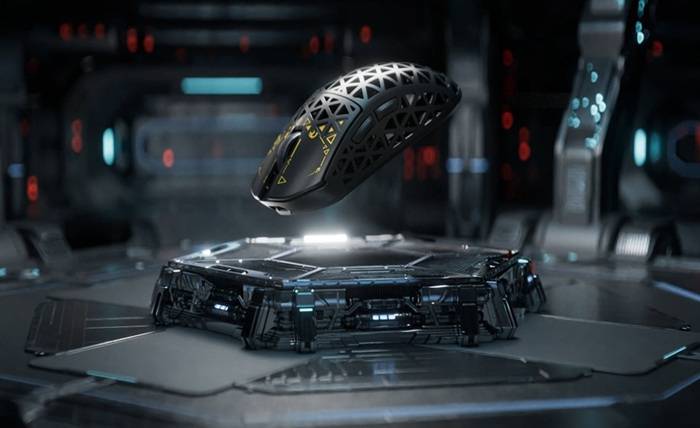
You’ve lined up the perfect headshot, your crosshair is dead center, and you click—only to watch the shot sail wide because your mouse registered an unwanted movement as you repositioned. For competitive gamers, these micro-failures add up fast, costing rounds, matches, and rankings. The culprit is often something most players never think to address: Mouse Tracking LOD, or Lift-Off Distance. This invisible threshold determines how your sensor behaves when you pick up and set down your mouse, and when it’s poorly calibrated to your surface, it introduces phantom cursor movements that destroy precision. Surface calibration is the fix—a process that teaches your mouse sensor exactly how to read the pad or desk beneath it, optimizing LOD for clean, predictable tracking. This article will walk you through everything you need to master these techniques. You’ll learn why low LOD gives competitive players an edge, how to perform effective surface calibration step by step, and advanced tuning tips that match your settings to your playstyle. Whether you’re a ranked FPS grinder or a MOBA enthusiast, these optimizations can meaningfully sharpen your aim.
What is Mouse Tracking LOD and Why It Matters for Gamers
Lift-Off Distance, or LOD, refers to the height at which your mouse sensor stops tracking the surface below it. When you lift your gaming mouse to reposition it—something competitive players do hundreds of times per match—the sensor continues reading the surface until it crosses this threshold. A mouse with high LOD keeps tracking well after you’ve lifted it, registering unintended lateral movements that shift your crosshair. A mouse with low LOD cuts tracking almost immediately, keeping your cursor exactly where you left it. The distance involved is measured in millimeters, typically ranging from 1mm to 3mm depending on the sensor and its calibration. Modern gaming mouse sensors like the PixArt PMW3395 or Razer Focus Pro offer adjustable LOD, but their default settings assume a generic surface. Without proper calibration, even a premium sensor can misread your specific mousepad’s texture, color, or weave pattern, resulting in inconsistent Mouse tracking LOD behavior. For competitive gamers, this inconsistency translates directly into missed shots and imprecise movements—problems that no amount of practice can overcome if the hardware isn’t properly configured.
How LOD Impacts In-Game Performance
Consider a common FPS scenario: you’re holding an angle, an enemy peeks, and you flick to their head. Mid-flick, you run out of mousepad space, so you lift, reposition, and continue tracking. With high LOD, that lift introduces a tiny diagonal movement—maybe two or three pixels of drift—enough to pull your crosshair off-target. In a game like Counter-Strike or Valorant, where headshot hitboxes are unforgiving, those pixels mean the difference between a kill and a death. The problem compounds in low-sensitivity setups where players lift frequently across large pads. In MOBAs like League of Legends, high LOD causes cursor drift during rapid repositioning in teamfights, potentially misclicking abilities onto wrong targets. Low LOD eliminates these ghost movements entirely. Your cursor stays locked the instant you lift, giving you consistent, repeatable repositioning every single time. This consistency builds muscle memory faster because your brain isn’t constantly compensating for variable drift. Professional players across every genre prioritize low, well-calibrated LOD precisely because it removes a variable from their aim equation, letting pure skill determine outcomes.
The Advantages of Low LOD in Competitive Gaming
Understanding why low LOD matters is one thing—grasping how it transforms your gameplay is another. The primary benefit is elimination of cursor drift during repositioning. When your sensor cuts tracking at 1mm instead of 3mm, you gain roughly two millimeters of “safe lift” where no unwanted input registers. This sounds trivial on paper, but across hundreds of lifts per match, it means your crosshair placement remains exactly where your muscle memory expects it to be. Precision during lifts improves dramatically because low LOD creates a binary state: your mouse is either tracking perfectly on the surface or not tracking at all. There’s no intermediate zone where partial, unreliable data feeds into your aim. This binary behavior also contributes to faster effective reaction times—not because your reflexes improve, but because you spend zero milliseconds correcting for drift after each reposition. Your first pixel of movement after setting the mouse back down goes exactly where intended.
Low LOD enhances control across various surface types by reducing the sensor’s sensitivity to distance variations in pad texture. A cloth pad with slightly uneven weave won’t trick a low-LOD sensor into reading phantom movements during lifts the way it might with a higher threshold. The trade-off is minimal for most players: if your LOD is set extremely low and your mousepad has warped edges or inconsistent thickness, you might experience brief tracking dropouts when pressing down in certain spots. This is solved through proper surface calibration rather than raising LOD back up. Some players also find they need slight sensitivity adjustments after lowering LOD, since their previous settings unconsciously compensated for drift. Once adapted, the cleaner input makes aim training more effective because every repetition reinforces correct movement patterns without noise.
Real-World Examples: Low LOD in Action
Professional Counter-Strike players provide the clearest demonstrations of low LOD’s competitive value. Players like s1mple and ZywOo, known for aggressive flick-heavy playstyles, rely on extremely low sensitivity settings that demand constant mouse lifting. Their configurations universally feature minimum LOD settings paired with surface-calibrated sensors, ensuring that rapid repositioning during clutch situations introduces zero crosshair deviation. When analysts reviewed gameplay footage comparing calibrated low-LOD setups against default configurations on identical hardware, the difference manifested as 2-4 pixels of drift per lift event at default settings—drift that accumulated into meaningful accuracy loss over a full round of play. In Valorant’s ranked ecosystem, players who switched from default LOD to properly calibrated low LOD reported noticeable improvement in first-bullet accuracy during peek engagements, where a single lift-and-replace often precedes the shot. One community test tracked 500 flick shots with high LOD versus low LOD on the same player, finding a 7% improvement in headshot percentage with the optimized setting. The competitive edge isn’t theoretical—it’s measurable and repeatable for any player willing to invest five minutes in proper calibration.
Step-by-Step Guide to Effective Surface Calibration
Surface calibration is the process of teaching your mouse sensor the exact optical properties of the surface beneath it, allowing it to set optimal tracking parameters including LOD height. Before you begin, prepare your setup properly. Clean your mousepad thoroughly—dust, oils, and debris alter the surface’s reflective properties and will skew calibration results. Ensure consistent ambient lighting, since some sensors factor in light conditions during the calibration routine. Place your mousepad on a flat, stable surface with no warping or lifted edges that could introduce height inconsistencies.
If your mouse supports manufacturer-driven calibration, open the companion software and navigate to the surface calibration or tuning section. In Razer Synapse, this lives under the mouse’s “Calibration” tab where you can select “Add a Surface” and either choose a preset for Razer-branded pads or run a manual calibration by dragging your mouse across the pad in a zig-zag pattern. Logitech G Hub offers a similar feature under sensor settings where you can set LOD to the lowest level and test whether tracking remains consistent. SteelSeries GG provides a “Surface Optimization” wizard that samples your pad’s texture automatically. During any of these processes, move your mouse at varying speeds and across the full pad area to give the sensor comprehensive data about your surface.
For mice without dedicated auto-calibration software—including many budget-friendly options from brands like MAMBASNAKE—manual tuning is still effective. Access your mouse’s LOD setting through its software or onboard DPI button combinations, then lower the LOD one step at a time. After each adjustment, test by placing a thin object—like a single CD or two stacked playing cards—under your mouse and checking whether tracking stops. If it does, your LOD is set at or below that height. Keep lowering until you find the threshold where normal pad contact tracks perfectly but minimal lift cuts tracking cleanly. This manual approach works on any surface and gives you direct control over the result.
Calibrating for Different Gaming Surfaces
Cloth mousepads are the most common gaming surface, and their woven texture creates a relatively uniform optical pattern that most sensors read well. However, cloth pads vary significantly—a rough Cordura weave behaves differently than a smooth silk-blend surface. When calibrating on cloth, run the calibration routine slowly and cover edge-to-edge because weave density sometimes varies across the pad. Set LOD to 1mm if your sensor supports it, then verify tracking doesn’t cut out during fast swipes where downward pressure might fluctuate. Hard pads made of plastic, aluminum, or glass present a different challenge. Their smooth, highly reflective surfaces can confuse sensors designed for textured materials, sometimes causing the sensor to read at inconsistent heights. Calibrate hard pads with extra attention to speed variation—move both slowly and at maximum flick speed during the routine. Glass surfaces specifically require sensors rated for glass compatibility, as standard optical sensors may fail entirely regardless of calibration. Hybrid pads that combine a cloth surface with a hard base typically calibrate similarly to cloth, but check for any hard spots where the base shows through worn fabric, as these create inconsistent LOD behavior in localized areas. If you switch between surfaces regularly—say a desk pad at home and a competition pad at LAN events—save separate calibration profiles for each.
Software Tools and Settings for Optimal Calibration
Each major gaming mouse manufacturer structures their calibration tools differently, so knowing where to look saves time. In Razer Synapse 3, open your mouse device, select “Calibration” from the left panel, toggle “Surface Calibration” on, and choose between asymmetric cut-off (setting different LOD for lift versus landing) or a unified distance. Razer also lets you select from a library of pre-measured surfaces if you use one of their branded pads. Logitech G Hub places LOD control under the mouse’s “Settings” gear icon—look for “Surface Tuning” on supported models like the G Pro X Superlight 2, where you can draw on-screen to sample your pad. SteelSeries GG nests calibration within “Sensor” settings, offering a 1-click optimization that measures your surface in seconds. For Corsair iCUE, navigate to your mouse’s “DPI” settings page where “Surface Calibration” appears as a toggle with preset pad options. After calibrating in any software, save the profile and test immediately. Open a game or aim trainer, perform 20-30 lift-and-replace motions while watching your crosshair for any drift or tracking interruption. If you notice dropouts during normal play, raise LOD by one increment and retest. Always update your mouse firmware before calibrating, as manufacturers frequently refine sensor algorithms through updates that improve surface compatibility and calibration accuracy.
Advanced Techniques for Tuning LOD Settings
Once you’ve completed basic surface calibration, tuning LOD in relation to your other sensor settings unlocks another level of precision. Your DPI and LOD interact more than most players realize—at higher DPI values, even minimal drift during a lift event translates into larger on-screen cursor displacement, making low LOD even more critical for high-DPI players. If you run 1600 DPI or above, prioritize getting your LOD to the absolute minimum your surface supports. Polling rate also plays a role: at 4000Hz, the sensor samples position so frequently that any tracking during a lift gets reported with extreme granularity, amplifying small drift into visible jitter. Match aggressive LOD reduction with high polling rates for the cleanest possible input stream.
Genre-specific tuning makes a meaningful difference. For precision roles like AWPing in Counter-Strike or sniping in Overwatch, set LOD to its absolute floor—you want zero tracking the instant you lift, since every reposition precedes a high-stakes shot. For fast-paced tracking games or roles requiring constant fluid motion, you can afford one increment above minimum LOD to prevent any chance of tracking dropout during aggressive downward pressure shifts mid-swipe. If your initial calibration produces occasional tracking cuts during intense gameplay, don’t immediately raise LOD across the board. Instead, check whether the issue occurs in specific pad zones—worn areas or edges often cause localized problems. Try recalibrating with emphasis on those regions, or apply slightly more consistent downward pressure during play. Adjusting your mouse grip to maintain flatter contact with the pad surface often resolves dropout issues without sacrificing your low LOD setting.
Troubleshooting Common Mouse Tracking Problems
Even after careful surface calibration, tracking issues can persist. Inconsistent tracking that appears only in certain pad zones usually indicates surface wear—cloth pads degrade over months of use, changing their optical properties enough to invalidate your original calibration. The fix is straightforward: recalibrate every few weeks or immediately after washing your mousepad. If your LOD setting doesn’t seem to respond to changes in software, perform a firmware update first, then try a hard reset of your mouse’s onboard memory by holding the designated button combination during power-on (check your manufacturer’s documentation for the exact sequence). Some mice store calibration data onboard rather than in software profiles, meaning a profile switch won’t take effect until you re-flash the setting. When tracking feels jittery or erratic despite correct LOD, check surface compatibility—dark or transparent surfaces confuse certain optical sensors regardless of calibration. Switching to a mid-tone, textured pad resolves this immediately. Driver conflicts between mouse software and system USB power management can also cause intermittent dropouts; disable USB selective suspend in your power settings and ensure no background application is overriding your polling rate. Make surface inspection part of your routine: check for debris buildup on your sensor lens monthly, verify your pad lies completely flat, and confirm your calibration profile is active before competitive sessions. These preventive habits keep your tracking reliable long-term.
Optimize Your LOD and Surface Calibration for Lasting Precision
Mouse Tracking LOD is one of those small technical details that separates optimized setups from default ones—and in competitive gaming, those details determine outcomes. By understanding how Lift-Off Distance affects your cursor behavior during repositioning, you gain the awareness needed to eliminate an entire category of aiming errors from your gameplay. Low LOD removes the unpredictable drift that undermines muscle memory, giving you a cleaner, more consistent input signal every time you lift and replace your mouse. Surface calibration is the practical tool that makes low LOD work reliably on your specific setup, teaching your sensor to read your exact pad rather than guessing based on generic assumptions. The process takes minutes but delivers lasting improvements to tracking consistency across every game you play. Whether you use manufacturer software or manual tuning methods, the key is committing to the calibration routine and maintaining it as your surface ages. Experiment with the techniques covered here—lower your LOD incrementally, calibrate thoroughly, and test under real gameplay conditions. The precision gains are immediate, measurable, and entirely within your control. Your aim is only as good as your hardware allows it to be, so give your sensor the information it needs to perform at its best.